In this next section we will be going over the process of both physically setting up your Firestick and the account setup process. This will require you to set up an Amazon account if you do not already have one.

Amazon Account Sign up

Plugging in your device

Start by plugging in your Firestick into the HDMI port. This can be done with or without that HDMI extender that is included. If you plan to utilize more HDMI ports on your TV, I highly suggest using it.

Now plug the power cord into the side of your Firestick using the included cord. Insert the USB into the power block and find an outlet.

You are now ready to get started! Shortly you should see a Fire TV Pop up on the screen with the Amazon Logo. If this doesn’t appear check to make sure your TV input is the same as the HDMI the your device is plugged into.

Initial Steps

Make sure your remote batteries are in. Your device should automatically search for the provided Fire tv remote. Press the home button if you have any issues to put it into pairing more.

Note: For remotes that have been previously connected to a device, see our Fire tv stick remote reset guide.

Press the Forward button on your remote to move past this screen

Now select your preferred language and move on to the next section where we go over account creation.

Account Creation

There are two options to create your account.

Option one involves scanning the QR code and downloading the Fire TV app. Follow this Module to learn how to set up things using the Fire TV app.

Option two is setting up your device with your remote. This process takes a little bit longer. Select set up with remote

Now you need to connect your device to your WIFI. Scroll right until you find your WIFI name, select it and enter your password. If you can’t find your WIFI that may mean your device is too far away from your modem.

Your device will now go through an updating phase. This can take anywhere between 1-15 minutes depending on your speed. DO NOT unplug your device at this time.

Account Creation Continued

You can now either sign into your account OR create a new account.

If you selected Create a new account you will now be able to follow one of the two methods above.

Now sign into your account either using the provided QR code with your smart phone OR go to Amazon.com/code and enter the code on your screen.

Setting Changes

You now have to register your account to your device. This will connect the Amazon account you signed in with to your Fire tv device.

Saving your passwords will make it easier when you sign in with your Amazon account on other devices.

Have you used this account on a device before? If so you can restore your previous settings and accounts.

Alexa allows for a hands free experience while using your device. Firestick remotes come with a Alexa button and some Fire tv devices have it built in. Say “Hey Alexa go to YouTube”

We will go over parental controls later in the settings review. If you want to restrict access to apps and content this is the easiest way.

Streaming Service Installs

Amazon makes the install process of your favourite streaming apps easy. Simply select the services that interest you or you may already own a subscription in.

Profile Creation

If you don’t have a profile created already we now need to do that. Select the Add profile option to set up your first one.

Profile Creation

You can either create a general profile or a kids profile with restricted access.

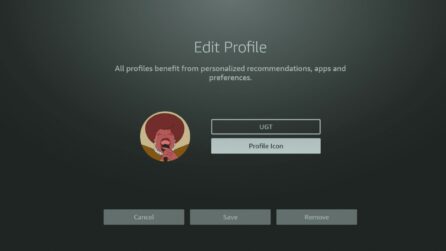
Select a name and profile icon for your account. Profile icons make it easier to distinguish between profiles if you have multiple.

ENJOY! now lets move on walking you through your devices.